 拓冰网站定制
- JEnv allows you to change your current JDK Version.
- This is helpful for testing or if you have projects requiring different versions of java
- For example you can build a gradle project which requires java8 without changing your environment variables and then switch back to work with java15
- It's written in cmd and powershell so it can change the environment variables and can run on any Windows-10+.
I hope you enjoy it. Please give me a star if you like my work. Thank you!

- Clone this repository
- Add it to the path
- Run
jenvonce so the script can do the rest - If your using cmd you need to call the batch file. If you use powershell you should call /src/jenv.ps1
- Some reported problems putting JEnv into their C:/Programs folder due to required admin rights
- I hope I could help you. Else open an issue
Sometimes its necessary to call jenv when entering a new directory with a local jenv specified. This will set your JAVA_HOME for the current shell and ensures that tools like maven work properly
-
Add a new Java environment (requires absolute path)
jenv add<name> <path>
Example:jenv add jdk15 D:\Programme\Java\jdk-15.0.1 -
Change your java version for the current session
jenv use<name>
Example:jenv use jdk15
Environment var for scripting:
---PowerShell:$ENV:JENVUSE="jdk17"
---CMD/BATCH:set "JENVUSE=jdk17" -
Clear the java version for the current session
jenv use remove
Example:jenv use remove
Environment var for scripting:
---PowerShell:$ENV:JENVUSE=$null
---CMD/BATCH:set "JENVUSE=" -
Change your java version globally
jenv change<name>
Example:jenv change jdk15 -
Always use this java version in this folder
jenv local<name>
Example:jenv local jdk15 -
Clear the java version for this folder
jenv local remove
Example:jenv local remove -
List all your Java environments
jenv list
Example:jenv list -
Remove an existing JDK from the JEnv list
jenv remove<name>
Example:jenv remove jdk15 -
Enable the use of javac, javaw or other executables sitting in the java directory
jenv link<Executable name>
Example:jenv link javac -
Uninstall jenv and automatically restore a Java version of your choice
jenv uninstall<name>
Example:jenv uninstall jdk17 -
Automatically search for java versions to be added
jenv autoscan [--yes|-y]?<path>?
Example:jenv autoscan "C:\Program Files\Java"
Example:jenv autoscan// Will search entire system Example:jenv autoscan -y "C:\Program Files\Java"// Will accept defaults
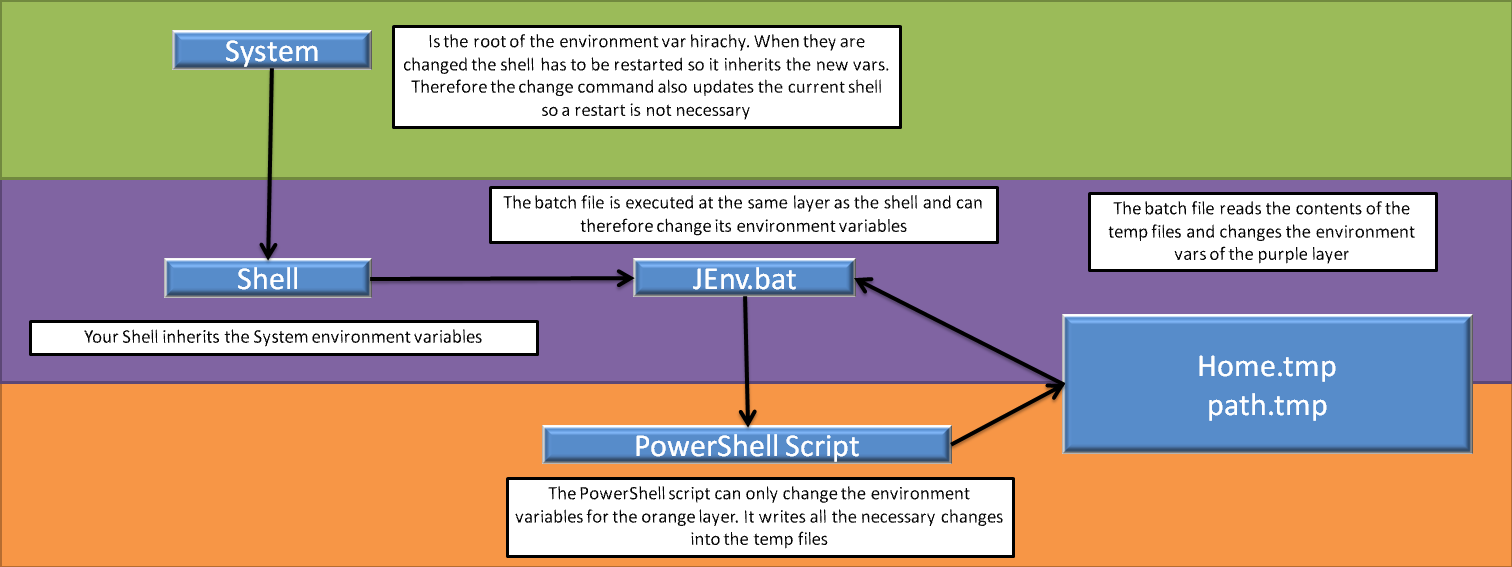
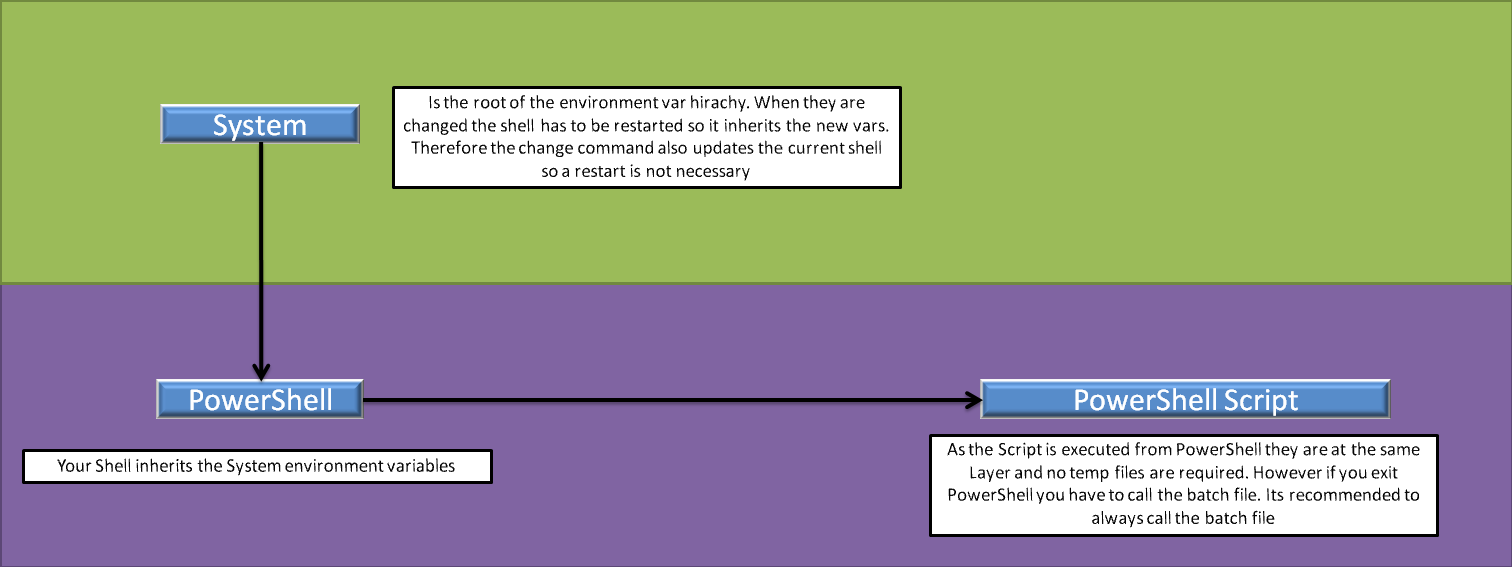
Thisscript creates a java.bat file that calls the java.exe with the correctversion When the ps script changes env vars they get exported to tmp files and applied by the batch file An additional parameter to the PowerShell script was added. "--output" alias "-o" will create the tmp files for the batch. See images below
Contributing
If you want to contribute feel free to do so. This is a great repository for beginners as the amount of code is not huge and you can understand how it works pretty easily.
For running tests I suggest you to use the latest version of powershell (pwsh.exe):
https://docs.microsoft.com/en-us/powershell/scripting/install/installing-powershell-on-windows?view=powershell-7.2
Be careful you have to run it as pwsh and not as powershell
Then you have to install Pester. This is only for tests: Install-Module -Name Pester -Force -SkipPublisherCheck
You could use your already installed powershell as well. However it has
an old Pester Module already installed which you can not use and I couldnot figure out how it can be updated: pester/Pester#1201
Navigate into the test folder and run the test.ps1 file. Itwill backup your env vars and your jenv config while testing and
automatically restore them later. But you should always let the tests
finish else your vars and config wont be restored