 拓冰网站定制
原文链接:https://blog.csdn.net/qq_29406323/article/details/86291763
1 继承关系
Object→MarshalByRefObject→Component→Control→ProgressBar
ProgressBar表示Windows进度栏控件。
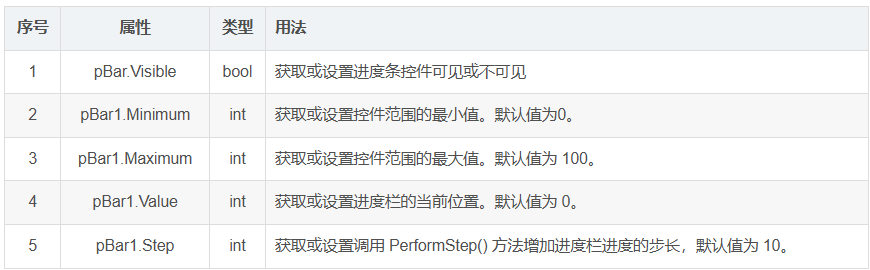
2 重要属性
3 示例
3.1 制作简单的进度条
①winForm窗体拖入一个ProgressBar控件,一个button控件,用于触发进度条。
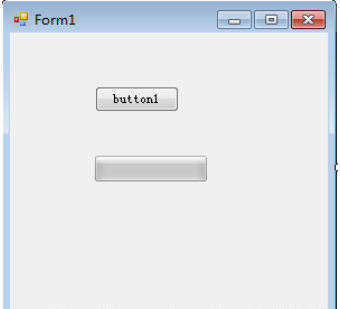
②窗体代码加入如下函数,在按钮click事件函数中加入startProgress()
private void startProgress()
{// 显示进度条控件.pBar1.Visible = true;// 设置进度条最小值.pBar1.Minimum = 1;// 设置进度条最大值.pBar1.Maximum = 15;// 设置进度条初始值pBar1.Value = 1;// 设置每次增加的步长pBar1.Step = 1;// 循环执行for (int x = 1; x <= 15; x++){// 每次循环让程序休眠300毫秒System.Threading.Thread.Sleep(300);// 执行PerformStep()函数pBar1.PerformStep(); }pBar1.Visible = false;MessageBox.Show("success!");
}
private void button1_Click(object sender, EventArgs e)
{startProgress();
}
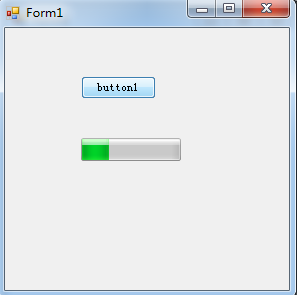
效果如下:
3.2 进度条显示百分比
方法参考:追梦使者87的博客
主要步骤:
①为ProgressBar添加Graphics对象
②使用DrawString()绘制文本
注:DrawString(String, Font, Brush, RectangleF)//绘制的文本,字体,画刷,文本位置
改写startProgress()函数
private void startProgress(){pBar1.Visible = true;// 显示进度条控件.pBar1.Minimum = 1;// 设置进度条最小值.pBar1.Maximum = 15;// 设置进度条最大值.pBar1.Value = 1;// 设置进度条初始值pBar1.Step = 1;// 设置每次增加的步长//创建Graphics对象Graphics g =  this.pBar1.CreateGraphics();for (int x = 1; x <= 15; x++){     //执行PerformStep()函数pBar1.PerformStep(); string str = Math.Round((100 * x / 15.0), 2).ToString("#0.00 ") + "%";Font font = new Font("Times New Roman", (float)10, FontStyle.Regular);PointF pt = new PointF(this.pBar1.Width / 2 - 17, this.pBar1.Height / 2 - 7);g.DrawString(str, font, Brushes.Blue, pt);//每次循环让程序休眠300毫秒System.Threading.Thread.Sleep(300);}pBar1.Visible = false;//MessageBox.Show("success!");
}
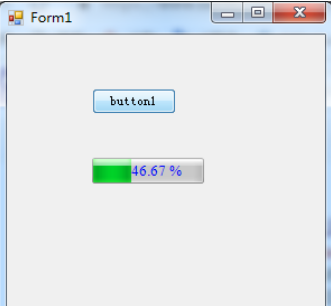
效果如下: