 拓冰网站定制
 VMware Debian 挂载 Windows 文件夹至 Debian 目录,方便 Debian 虚拟机进行测试。
VMware Debian 挂载 Windows 文件夹至 Debian 目录
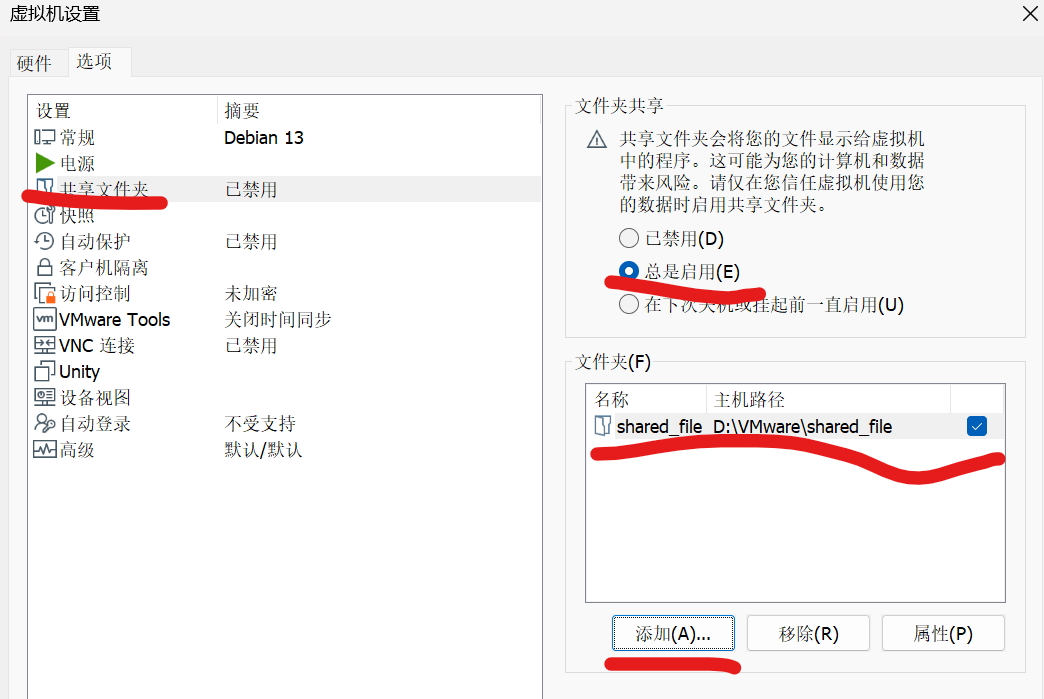
一、VMware 启用共享文件夹功能
- 在虚拟机设置中启用“共享文件夹”。
- 添加一个共享文件夹,例如命名为
shared_file,并指定主机上的路径。
二、Debian 虚拟机安装 VMware Tools 或 open-vm-tools
推荐使用 open-vm-tools(现代 Linux 发行版通常默认支持)。
1. 安装 open-vm-tools
sudo apt update
sudo apt install open-vm-tools open-vm-tools-desktop fuse
如果是桌面环境,建议同时安装 open-vm-tools-desktop;如果是服务器环境,可只装 open-vm-tools。
重启虚拟机确保服务正常加载。
sudo reboot
三、Debian 创建挂载点
创建挂载点
sudo mkdir -p /media
四、手动挂载共享文件夹
sudo vmhgfs-fuse .host:/shared_file /media -o allow_other
其中:
.host:/shared_file中的shared_file是 VMware 虚拟机设置中指定的共享文件夹名称。-o allow_other参数为允许非 root 用户访问。
五、验证挂载是否成功
ls /media
df -h | grep media
若是能够看到主机共享目录中的文件,说明挂载成功。
六、设置开机自动挂载
编辑 /etc/fstab:
sudo nano /etc/fstab
在文件内添加以下内容:
.host:/shared_file /media fuse.vmhgfs-fuse allow_other,uid=1000,gid=1000,defaults 0 0
其中:
uid=1000,gid=1000为普通用户的 ID (默认为 debian 的第一个普通用户)。如果不知道当前用户的 ID 可以通过id命令进行查询。
保存 fstab 文件。
重新加载 systemd 的配置文件:
sudo systemctl daemon-reload
重启后,可测试 fstab 是否有效:
ls /media
df -h | grep media
若输出挂载信息则挂载成功。